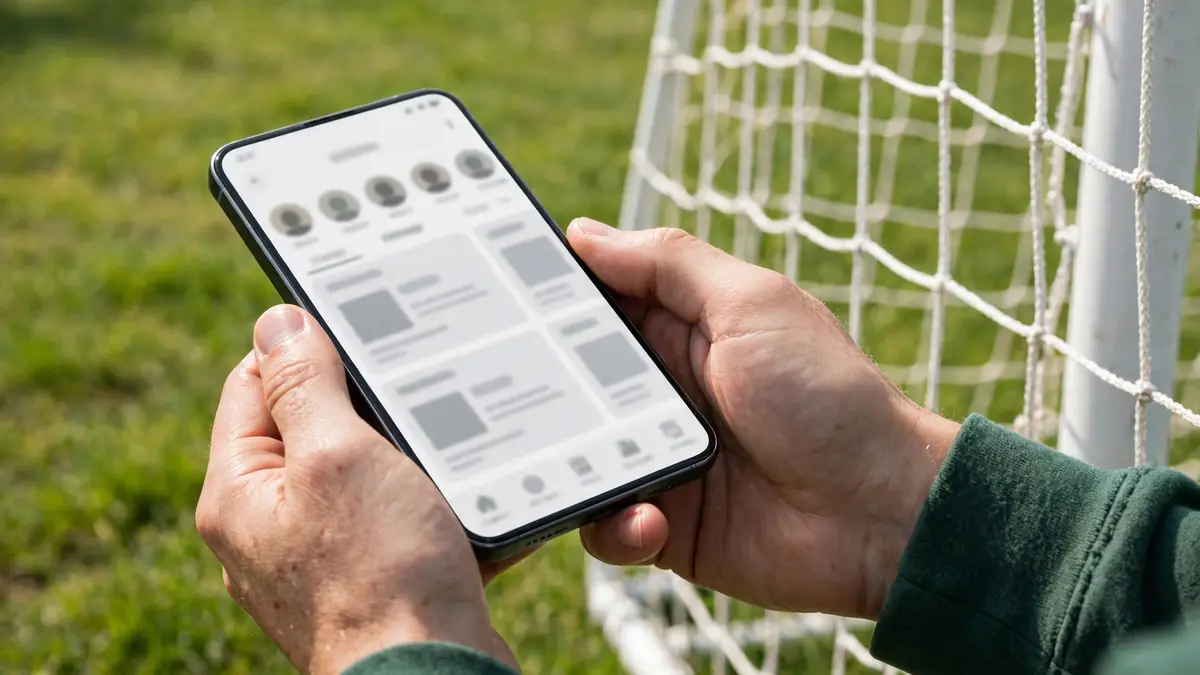
Joining a new team usually means a flurry of information at once: practice times, game locations, who is bringing what, and where everyone needs to be. TeamLinkt is designed to put most of that in one place. It is a sports registration, scheduling and communication platform for sports organizations, leagues, clubs and associations, and their teams, used across youth, recreation and competitive sports. If you have just been invited to a team, this guide is a tour of the app itself: what each part is for, and how a parent, player or coach uses it in the course of a week. It is not a setup walkthrough. If you still need help joining, start with our guide to getting started with the TeamLinkt app first, then come back here once you can see your team.
This is an independent, informational guide site. It does not create accounts, take registrations or payments, or provide TeamLinkt support. Families usually join a team through an invitation or instructions from their coach or organization, and you can also access TeamLinkt on the web at app.teamlinkt.com. The app, listed as "TeamLinkt - Sports Team App," is free to download on Google Play and the Apple App Store. It contains ads, and there is an optional TeamLinkt Plus membership that gives an ad-free family experience.
The Schedule Is the Heart of the App
For most families, the schedule is the reason to open the app. Coaches and team managers share the schedule and event details there, so practices, games and other events live in a single list rather than scattered across emails and handouts. Opening an event is where the useful detail sits. Depending on how your team uses it, an event can show when something starts, where it is happening, and any notes the coach wants everyone to see before they leave home.
The habit that makes the schedule work is simple: treat it as the source of truth. Fields get wet, start times shift, and tournaments add games at short notice. Checking the event on the day, rather than relying on a screenshot from earlier in the week, prevents most avoidable confusion. Open an event rather than just glancing at its title: the details tell you which field and what time to arrive.
Push and Email Reminders
TeamLinkt sends push and email event reminders, and those reminders do a lot of quiet work over a season. A push notification is a prompt to check the time, pack the bag and leave a little earlier. An email reminder serves a similar purpose for people who live in their inbox, or for a second guardian who is not checking the app every day.
Keeping notifications on is one of the most practical choices you can make. If reminders are silenced, you may not know a practice moved until someone notices you are missing. If reminders are not arriving as expected, our troubleshooting guide to fixing TeamLinkt notification problems walks through the common causes. You do not need to check the app constantly, you just need it to be able to reach you when something changes.
Player Availability: A Small Tap That Helps Everyone
Availability is one of the least glamorous features in the app and one of the most valuable. It is how you set whether a player will be at an event or not. For a coach trying to plan a lineup or decide whether there are enough players for a game, that information matters more than almost anything else.
The best practice is to set availability early, and to change it as soon as your plans change. Waiting until the morning of a game leaves a coach guessing. Marking it a few days ahead, when you already know about a family commitment or an appointment, gives the team time to adjust, and the coach can see the picture for the whole roster in one place instead of counting replies in a chat thread.
For parents and guardians, availability is often your main job in the app. Young players are not managing their own calendars, so a quick check once a week, looking ahead to the next few events and confirming each one, takes less than a minute. For older players who manage their own accounts, the same responsibility shifts to them.
The Roster: Who Is Who
The roster is the team's list of people. The store listing notes unlimited roster members, which means the whole team, along with the adults connected to it, can be included without someone being left off for space. As a new user, the roster is useful in unglamorous ways: learning teammates' names in the first few weeks, and putting faces to the names you hear on the sideline.
For coaches and managers, an accurate roster underpins everything else: availability, lineups, chat and task assignments all depend on the right people being on the list. If you join and cannot see your player, raise it early with your coach or organization. Small roster errors create small problems everywhere else.
Communication: Group Chat, Direct Chat and Email
TeamLinkt includes group and direct chat and email, so most day-to-day communication can happen without a separate messaging thread that half the parents never joined. Group chat is the team-wide conversation: quick updates, a reminder about arrival time, or a note that the field has changed. Direct chat is for one-to-one conversations, a parent checking something privately with a coach, rather than asking the whole group.
Choosing the right channel is mostly common sense. If the information affects everyone, group chat is the place for it, because everyone sees the same message at the same time. If it is about one player, an injury, a late arrival, a personal circumstance, a direct message or email is more appropriate. Email still has a role for longer messages people may need to find again later, such as tournament information.
A practical tip: read the group chat, even if you rarely post in it. Coaches often share small, important details there. Being quietly up to date is participation enough, and it stops you asking a question that was answered the day before.
Photos: The Team's Shared Album
The app supports unlimited photos, and for many families this becomes the feature they enjoy most. Instead of photos living on one parent's phone, team photos can be shared in one place where everyone connected to the team can see them.
Used well, the photo area becomes a record of the season: the first practice, a tournament weekend, a muddy game everyone remembers. It is especially valued by relatives who cannot attend every event. As with any photo sharing involving young people, follow your coach, club or organization's guidance on what is appropriate to post.
Polling and Task Assignments: The Organizing Tools
Two features help with jobs that otherwise fall to endless reply-all messages: polling and task assignments. Polling lets a team ask a question and collect answers in an organized way. Depending on how your team uses it, that might be choosing between options or gauging interest in an extra event. The advantage over chat is that answers are counted together instead of buried in a scrolling thread.
Task assignments cover the practical work around a team. Youth and recreation sports run on volunteers: someone brings a snack, someone helps set up, someone takes on a job for game day. Assigning those tasks in the app makes them visible, so the same reliable people are not silently carrying everything. If you are assigned a task, confirm it promptly, and if you cannot do it, say so early enough that it can be reassigned.
Lineups and the In-Game Scoreboard
On game day, two features come into their own. Coaches can set lineups in the app, so the planned starting group and positions are shared ahead of time rather than worked out on a scrap of paper at the field. For players, seeing a lineup beforehand helps them arrive prepared for their role. For parents, it answers the question everyone is quietly asking before the start.
The in-game scoreboard lets the score be followed during a game. That matters most to the people who are not there: a parent at work, or a guardian with another child at a different field. Someone at the game updates the score, and everyone connected to the team can keep up. It will never replace being on the sideline, but when families are split across places, it keeps everyone part of the same game.
How Each Role Uses the App
Parents and Guardians
Your typical week is about awareness and small, timely actions. You check the schedule, confirm availability for your player, keep notifications on, follow group chat for changes, and enjoy the photos. You might answer a poll, pick up a task, and follow the scoreboard when you cannot be at a game. None of this takes long. The families who struggle are usually the ones who did not hear about a change.
Players
What is expected of players depends on age. Younger players may never open the app themselves, and that is fine. Older players increasingly use it to check event details, set their own availability, read coach messages in group chat, and see lineups before a game. That is a healthy part of team responsibility: knowing when to be somewhere, and being honest early if you cannot be there. If you manage your own account, build the same weekly habit as a parent, look ahead, confirm, and do not leave your coach guessing.
Coaches and Team Managers
For coaches and managers, TeamLinkt is an organizing desk rather than just a calendar. You share the schedule and event details, watch availability come in so you can plan sessions and lineups, use group and direct chat and email to keep communication in one place, run a poll when you need a clear answer, and assign tasks so game-day jobs are shared fairly. On game day, you set the lineup and make sure someone is covering the scoreboard. The coaches who get the most from it tend to be consistent: one place for information, updated promptly, so families learn that checking the app gives them the full picture. Our broader overview of how to use TeamLinkt puts these workflows in context.
Practical Habits for New Users
A few small habits will make your first season smoother. Check availability early in the week, not on game day. Keep notifications on, and glance at the actual event details before travelling rather than trusting memory. Keep communication in the app where the whole team can find it, and use direct messages for private matters. And if something does not make sense, look for an answer first, many common queries are covered in our answers to frequently asked TeamLinkt mobile app questions.
Teams use these features differently. One coach may live in group chat; another may rely on email and event notes. One team may use polling and tasks weekly; another may barely touch them. Watch how your team operates in the first couple of weeks, and follow its lead.
Conclusion
TeamLinkt is at its best when it fades into the background of a season: the schedule is clear, availability is honest and early, reminders arrive in time, and everyone knows where to look when plans change. You do not need to master every feature in the first week. Start with the schedule, availability and notifications. Add chat, photos, polls and tasks as your team uses them, and enjoy the lineup and scoreboard on game day. Do those basics consistently, and you will be the kind of teammate every team is glad to have. For official help, contact TeamLinkt directly, including at help@teamlinkt.com, since this independent guide cannot access or change your team.